

Dropbox: Secure Cloud Storage
Comments
Dropbox: Simple Cloud Storage for Files You Care About
Editor's Note Dropbox was one of the first services to make cloud folders feel normal on a phone. For adults in the U.S. and Europe who want a straightforward place to keep copies of important files—insurance scans, trip itineraries, photos, or PDFs from a doctor—Dropbox still offers a clear, familiar interface. It is not tied to one phone maker or office suite. You create an account, add folders, and decide what to sync or share. That independence appeals if you use Android today but sometimes borrow an iPad, or if you help family members who use different brands of devices.
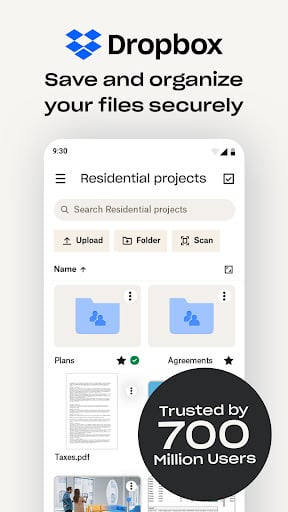
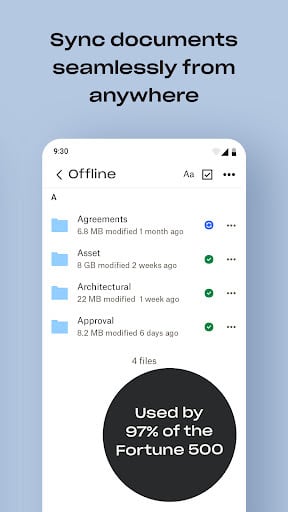
Core Functionality: Folders in the Cloud Dropbox mirrors the idea of folders on a computer. You can upload from your phone, organize into projects, and open files in other apps when needed. Deleted items go to a recovery area for a period, which can save you from an accidental tap.
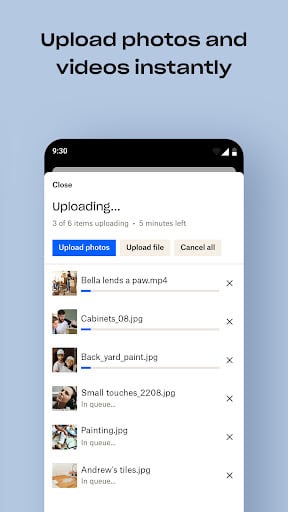
Photos and Automatic Upload Dropbox can automatically back up new photos from your camera roll, helping when storage runs low. Like any cloud service, choose Wi-Fi-only upload if you worry about data roaming charges abroad. You can also manually upload selected albums after a vacation rather than everything at once.
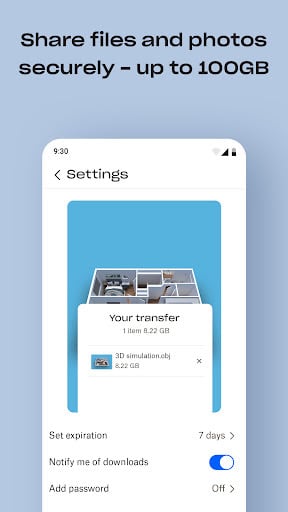
Sharing Links and Family Projects Need to send a large set of documents to an accountant, a contractor, or an adult child helping with paperwork? A shared link avoids email size limits. You can set expiration dates or passwords on sensitive shares when the app offers those controls. For collaborative projects—planning a reunion, collecting recipes, sharing scanned wills or powers of attorney for review—shared folders keep one authoritative copy instead of ten conflicting attachments.
Cross-Platform Access Dropbox runs on Android, iOS, Windows, and Mac. If your household mixes devices, the same login opens the same files everywhere. That reduces the “I saved it on the other machine” problem that frustrates many people who did not grow up with sync as a default.
Security Basics Use a unique password and enable two-factor authentication on your Dropbox account. Be cautious with public links: anyone with the link may access files unless you restrict or disable it. For highly sensitive medical or financial documents, consider extra encryption or a dedicated secure note from your advisor; cloud storage is convenient but not a substitute for professional guidance on legal records.
Plans and Storage The free tier offers limited space suitable for testing; larger collections need a paid plan. Review pricing in the app store listing before committing, and estimate how many photos and PDFs you truly want in the cloud versus on a home backup drive.
Practical Considerations Dropbox prioritizes clarity over flashy extras. It may not bundle a full office suite or AI photo editing like some rivals, but it excels at dependable file sync and sharing. If you want a vendor-neutral vault for documents and memories, with apps that feel readable on a phone screen, Dropbox remains a solid choice—especially when paired with good passwords, two-step sign-in, and occasional cleanup of old shared links.
Screenshots
You May Also Like

Google Photos
Photography

Microsoft OneDrive
Productivity

Dropbox: Secure Cloud Storage
Productivity

1Password: Password Manager
Productivity

LastPass Password Manager
Productivity

Dashlane Password Manager
Productivity
Blood Pressure App: BP Monitor
Health & Fitness
Heart Monitor: Measure BP & HR
Medical

Water Tracker: WaterMinder app
Health & Fitness
First Aid: American Red Cross
Health & Fitness

Zocdoc - Find and book doctors
Medical

OneTouch Reveal app
Medical
Top Download Apps

Google Photos
Photography

Microsoft OneDrive
Productivity

Dropbox: Secure Cloud Storage
Productivity

1Password: Password Manager
Productivity

LastPass Password Manager
Productivity

Dashlane Password Manager
Productivity

Blood Pressure App: BP Monitor
Health & Fitness

Heart Monitor: Measure BP & HR
Medical

Water Tracker: WaterMinder app
Health & Fitness

First Aid: American Red Cross
Health & Fitness