

Google Photos
Comments
Your Photos, Organized and Safe in the Cloud
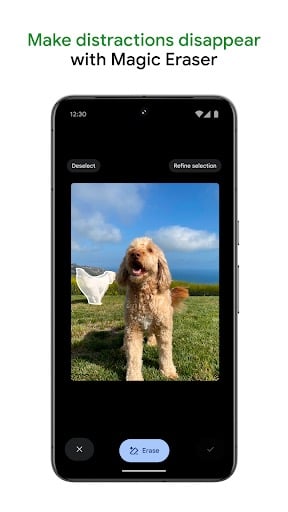
Editor's Note If you live in the United States or Europe, your phone has likely become the main camera for family gatherings, holidays, grandchildren’s first steps, and everyday moments you want to keep. Google Photos is built to store those pictures and videos in one place, help you find them later, and share them with people you trust without emailing large attachments or losing files when a phone is replaced. You do not need to be a professional photographer to benefit. The app focuses on automatic backup, simple search, and gentle tools for cleaning up duplicates or blurry shots when you are ready.
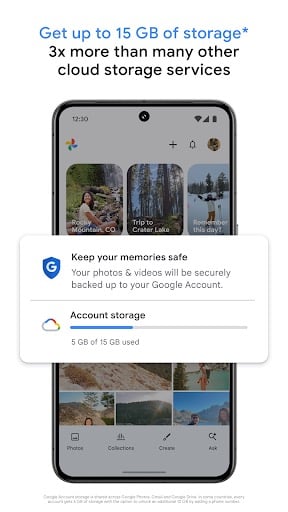
Why Cloud Backup Matters Phones break, get lost, or run out of space. When photos exist only on one device, a single accident can erase years of memories. Google Photos can copy new shots to your Google account over Wi-Fi, so a replacement phone can restore much of your library after sign-in. That peace of mind is especially valuable if you travel, if you share a device with a partner, or if you have ever deleted something by mistake and wished for a second copy.
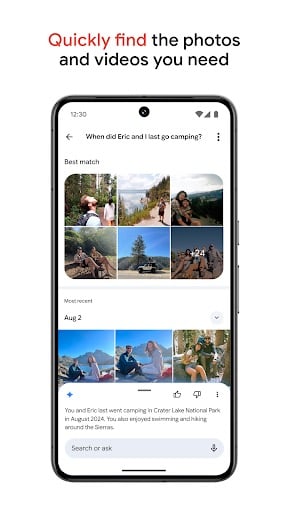
Core Functionality: Backup, Browse, and Search After setup, Google Photos often uploads images in the background while your phone charges on home Wi-Fi. You can browse by date, album, or place names when location data is available. Search lets you type words like “beach,” “birthday,” or a person’s name if face grouping is enabled in your settings. Instead of scrolling endlessly, you can jump to what you need for a slideshow at a family dinner or a printed photo book project.
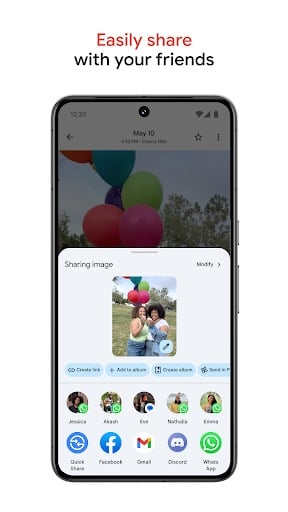
Sharing Without Complicated Attachments Sharing albums or individual items through a link is simpler than attaching ten photos to an email. You choose who can view or add photos, and you can revoke access later. For families spread across states or countries, that keeps everyone in the loop when someone cannot visit in person.
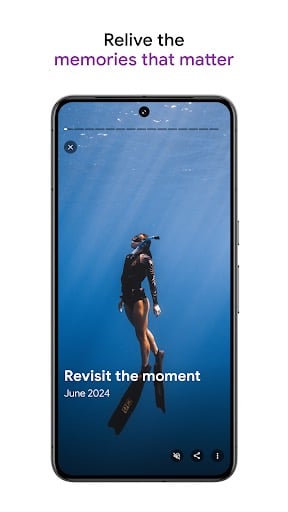
Memories and Highlights The app surfaces curated highlights—trips, seasons, people you photograph often—which can feel like a friendly nudge to relive good days. You can keep these features on or ignore them; they do not replace your own albums if you prefer manual organization.
Storage and Plans Google offers a free tier with limits that change over time; larger libraries may need a Google One subscription for extra space. Before uploading your entire history, check current storage settings in the app and on the web so you understand what counts against your quota. Many people start with new photos only, then expand once they are comfortable.
Privacy and Account Security Your library ties to a Google account protected by your password and, ideally, a second verification step such as a code on your phone. Review sharing links occasionally and sign out of shared devices you no longer use. Google’s policies and regional settings may differ between the U.S. and the EU; read the in-app privacy controls if you want to limit face grouping or location history.
Practical Considerations Google Photos works best with a reliable Google account, steady Wi-Fi for large uploads, and a little patience during the first backup week. If you want an easy way to protect memories, find old pictures quickly, and share with family without technical fuss, it remains one of the most approachable options on Android—provided you are comfortable storing photos in Google’s cloud.
Screenshots
You May Also Like

Google Photos
Photography

Microsoft OneDrive
Productivity

Dropbox: Secure Cloud Storage
Productivity

1Password: Password Manager
Productivity

LastPass Password Manager
Productivity

Dashlane Password Manager
Productivity
Blood Pressure App: BP Monitor
Health & Fitness

Heart Monitor: Measure BP & HR
Medical

Water Tracker: WaterMinder app
Health & Fitness

First Aid: American Red Cross
Health & Fitness

Zocdoc - Find and book doctors
Medical

OneTouch Reveal app
Medical
Top Download Apps

Google Photos
Photography

Microsoft OneDrive
Productivity

Dropbox: Secure Cloud Storage
Productivity

1Password: Password Manager
Productivity

LastPass Password Manager
Productivity

Dashlane Password Manager
Productivity

Blood Pressure App: BP Monitor
Health & Fitness

Heart Monitor: Measure BP & HR
Medical

Water Tracker: WaterMinder app
Health & Fitness

First Aid: American Red Cross
Health & Fitness